
ABOUT
Find Match
FEATURE

4
Shop right away or save for later
Selecting a featured garment from the carousel above provides two main actions: "Add to Chosen" or "Buy".
Choosing "Add to Chosen" stores the apparel on your personal "Chosen" dashboard, allowing you to finalize the shopping experience at a later time.
Selecting "Buy" redirects you instantly to the external merchant's storefront, where you can complete the acquisition of your new fashion find.


3
Discover your top style selections
As the application processes your results (a brief wait is normal), a gallery will appear featuring curated items with full details and pricing. Explore these suggestions from CLOSIT to discover the perfect coordinated pieces that truly match your unique style.
2
After uploading the picture
-
Once you upload your photo, select the category that best describes your item, such as a Top or Bottom.
-
Next, specify what you want to find.
For example, if you upload a jacket, set the first field to Top and the second field to the item you need, like a Bag.
-
Setting a price range is optional but helpful if you have a specific budget in mind.
-
Finally, select the gender you are shopping for to ensure the app provides the most accurate and relevant styling recommendations.
-
When all your choices are set, simply tap the Find Match button to see your results immediately.
1
Home Page
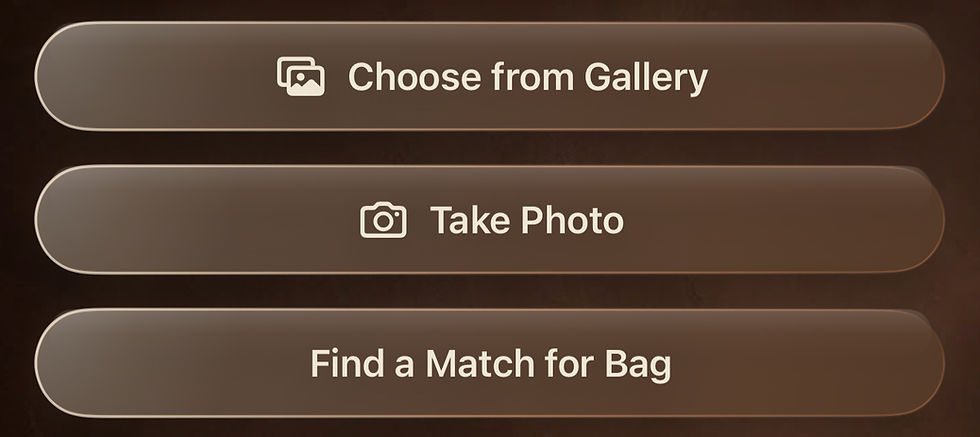
After opening the application, locate the "Find Match" button. Simply tap it to access the interface where you can capture a photo of your clothing item, or select an existing image directly from your personal gallery.
Where to find
Chosen?

Favorites Page...
...is where can find your shopping cart that is in Closit app called CHOSEN.